
A lot of what you know about a household lives on other websites: years of notes in an old CRM, documents at the custodian, property records on the county’s site. With browser control, you tell Helmsted to go to the site and get it done, and it works through the site in a browser window beside your session while you watch.
1. Ask in plain language
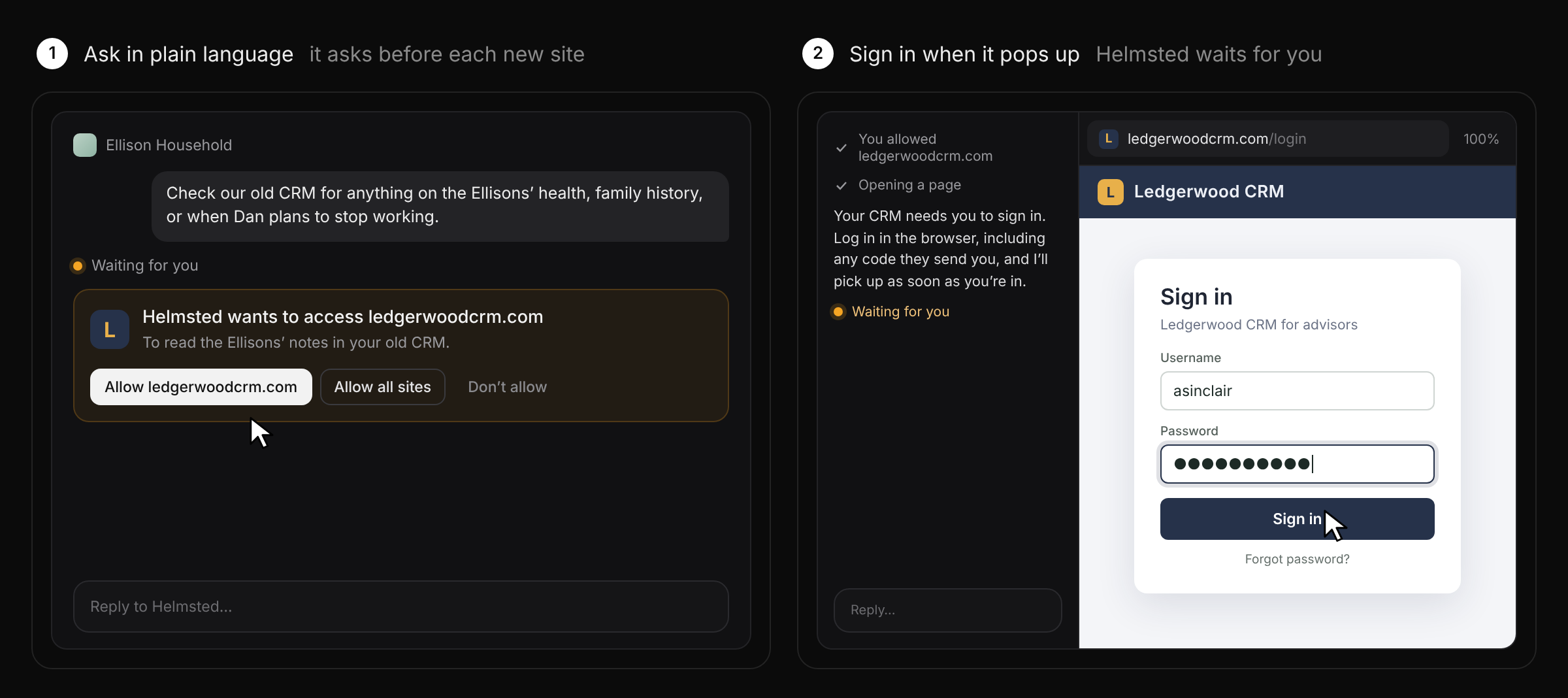
In any session, say what you need and where: “Check our old CRM for anything on the Ellisons’ health, family history, or when Dan plans to stop working,” or “Look up this year’s property taxes on their rental house on the county’s website.” The first time Helmsted goes to a site in a reply, it asks first. Choose Allow for that site, Allow all sites, or Don’t allow.
2. Sign in when it pops up
If the site needs a login, the browser window pops up on the sign-in page and Helmsted waits, with Waiting for you in the session. Log in yourself, including any code the site sends you. Helmsted can’t do anything on the site until you do, and it never types a password, a code or an account number for you. As soon as you’re in, it takes it from there.
3. Watch it work
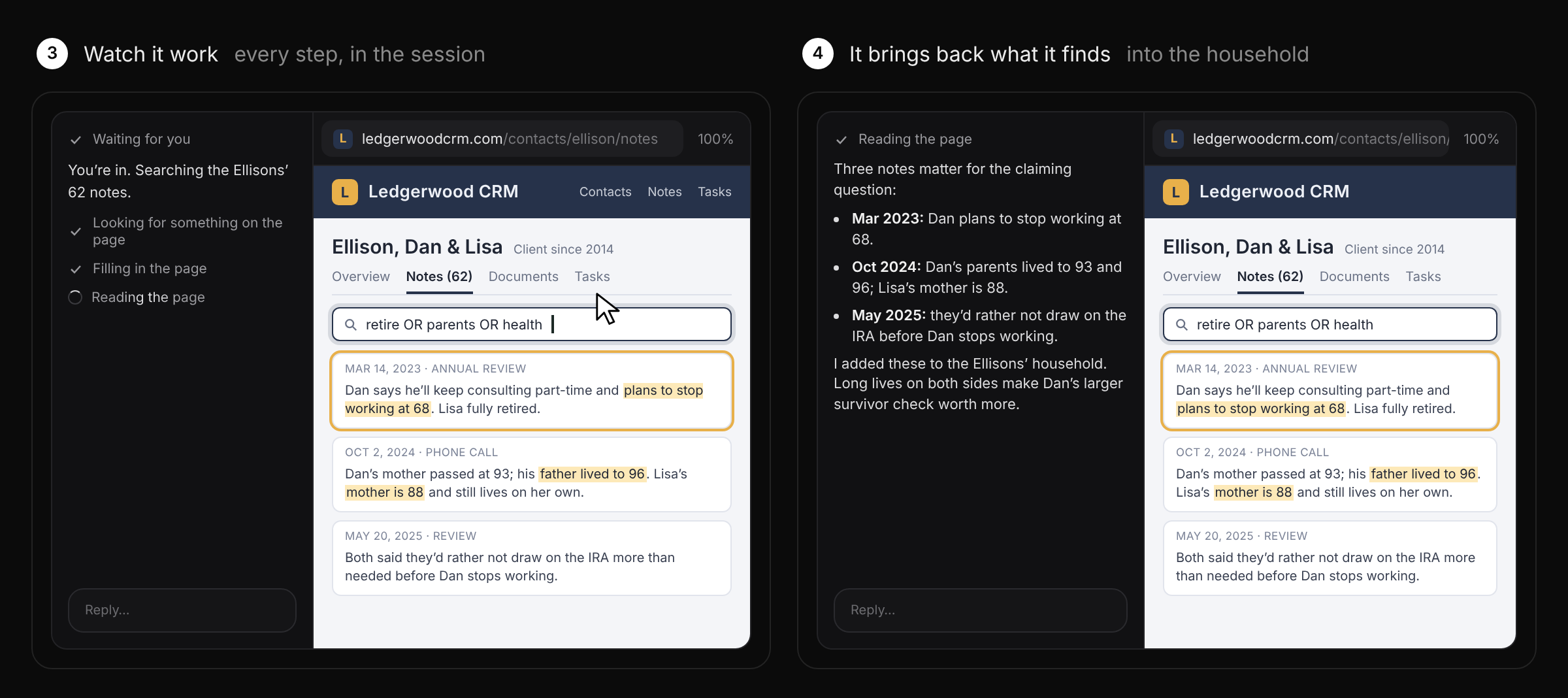
Helmsted finds its way through the site the way you would, using its own search and links, and every step shows in the session: opening a page, looking for something on it, filling in a search, reading what comes back. You can click and type in the window yourself at any time, and stop or steer Helmsted the same way you would any reply.
4. It brings back what it finds
When it’s done, Helmsted tells you what it found and where, and can add it to the household so it’s there for the next plan, meeting or report. When you ask for a file, like a statement or a page saved as a PDF, it comes back in the session with Save to drive or Discard. When a task ends in a form, Helmsted fills it in and checks with you before submitting.
Good to know
- You sign in to every site yourself. Logins aren’t saved between sessions.
- Helmsted asks before it works on each new site, including when a link takes it somewhere new.
- Nothing is recorded: the browser keeps no recording of the session.
- The browser closes on its own after ten minutes without use.
See it in a full working session in At the Helm No. 17.
The households and the CRM shown are fictional.