
Video meetings already write themselves up in Helmsted. Now, with the in-person meeting recorder, out now, in-person meetings do too. Put your laptop on the table, and Helmsted records, transcribes and writes the notes.
1. Book it in person
Create the meeting on your calendar as a client meeting, pick the household, and choose In person under Where. Add the place if you like. The meeting’s card now says Record on this device. Tag the household on every client meeting: the event shows much more detail when you do.
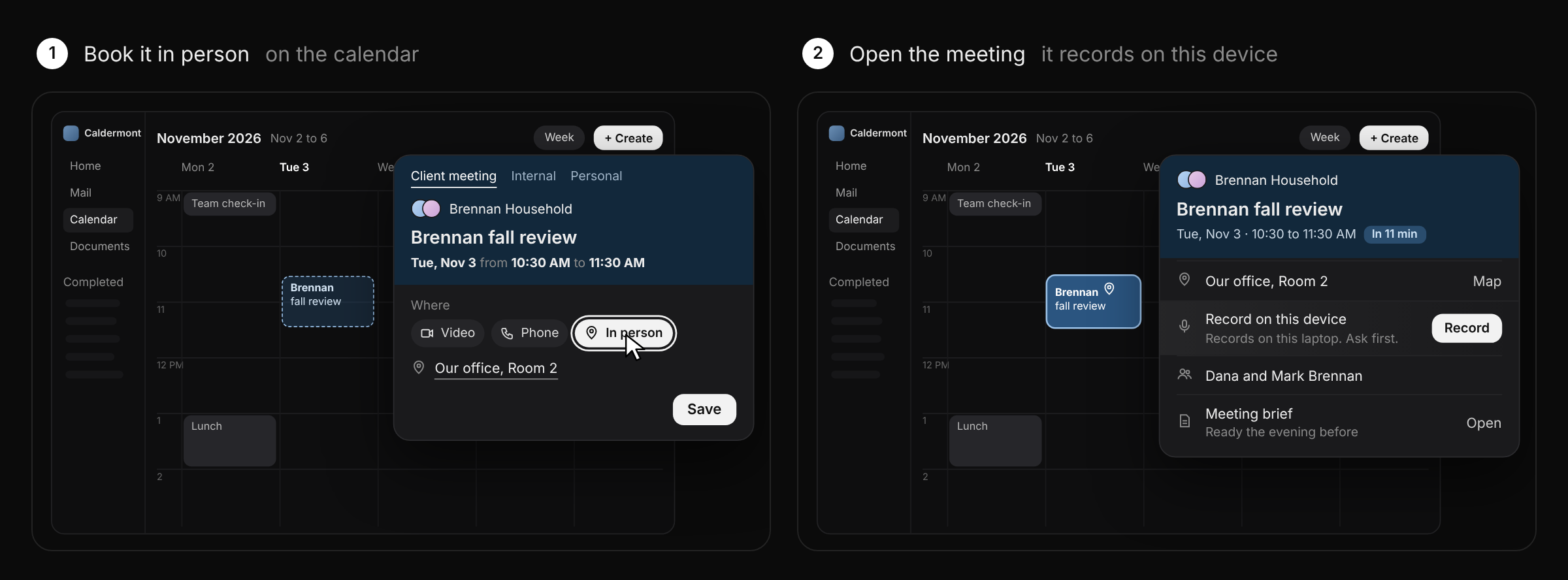
2. Record when it’s time
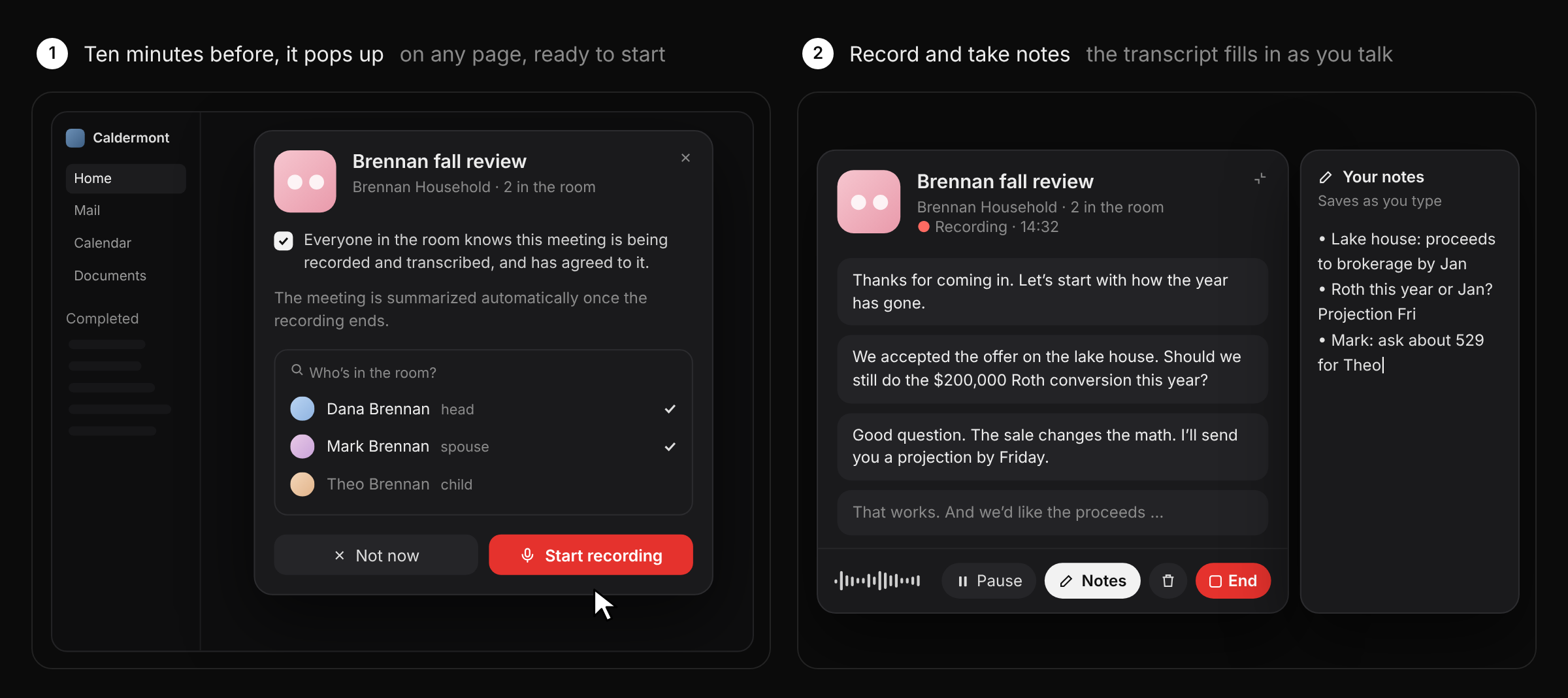
Ten minutes before the meeting, the recorder pops up on whatever page you’re on. Tick the box to confirm everyone in the room knows the meeting is being recorded and has agreed, check who’s in the room, and press Start recording. Not now dismisses it for that meeting, and you can always start from the Record button on the meeting’s card instead.
While it records, the transcript fills in as people talk. Open Notes to type your own notes alongside it, and Pause when you need to.
3. Keep working, then end it
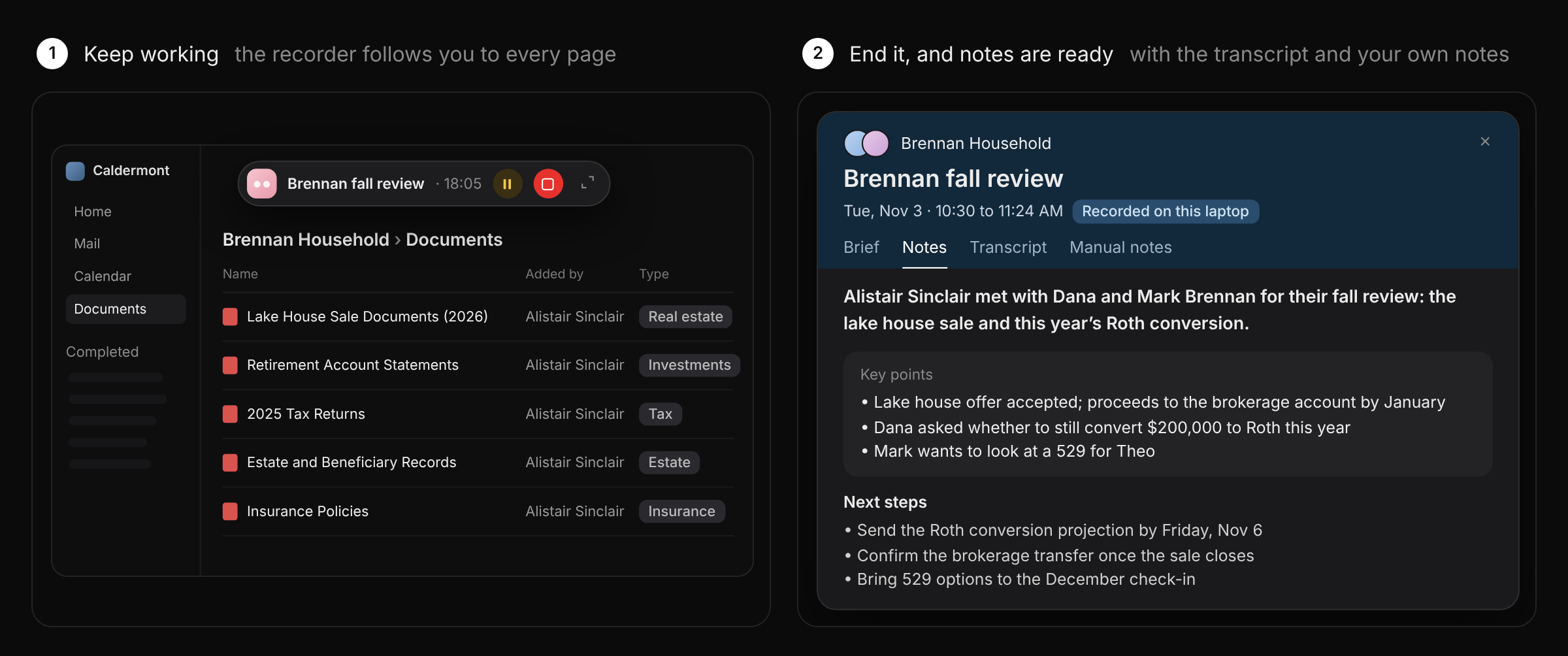
Minimize the recorder and it shrinks to a bar at the top of the page that follows you to Mail, Documents and every other page, so you can pull up a statement mid-meeting without stopping. The meeting’s card reads Recording on this laptop while it runs. If you close or reload the tab, choose Resume here from the bar.
Press End when the meeting is over. The card reads Recorded on this laptop, then Notes ready once the write-up is done. Open the meeting for the notes, the full transcript and your own typed notes. Follow-ups from the meeting show up as suggested next steps.
4. Nothing on the calendar? Start one anyway
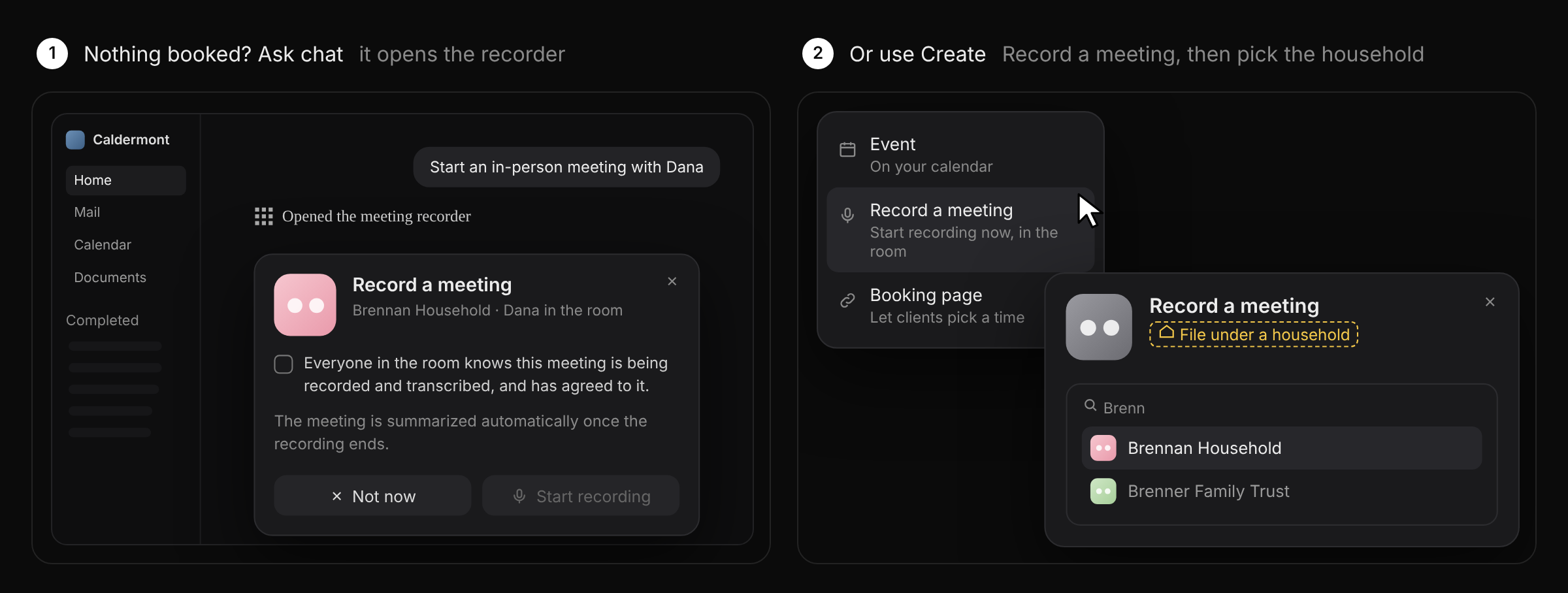
Ask in a session, “Start an in-person meeting with Dana,” and Helmsted opens the recorder with Dana’s household filled in. Or choose Record a meeting from the Create menu and pick the household. When it ends, the recording lands on your calendar as a meeting, if your calendar is connected.
Good to know
- The recorder pops up on its own only when a client meeting has a household and is marked In person. For anything else, use Record a meeting.
- Recording only starts after you confirm everyone in the room has agreed.
See it in a full working session in At the Helm No. 16.
The households shown are fictional.